Payment Settings
- Title: Enter title for currency
- Currency name: Select on the list of currencies name
- Format: this controls the position of the currency symbol.
Ex: $400 or 400 $ - Thousand Separator: Specifies what string to use for thousand of separators. Depending on your currency, you can change to other symbols.
- Decimal Separator: Specifies what string to use for Decimal separator. Depending on your currency, you can change to other symbols
- Currency decimal: Adjusts the number of digits after the decimal.

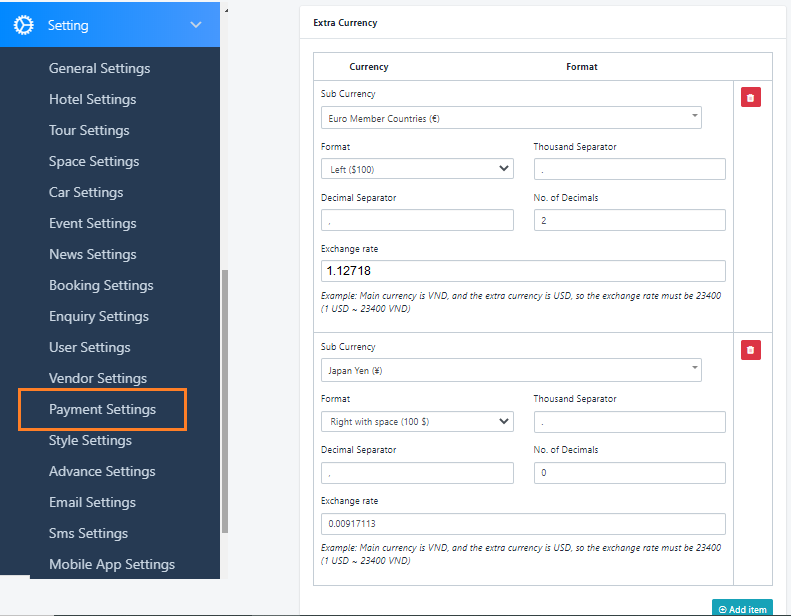
Extra Currency: to enable the Multi-Currency, you need to add Extra Currency like the sample below:
The Exchange rate will be calculated following the Main currency:
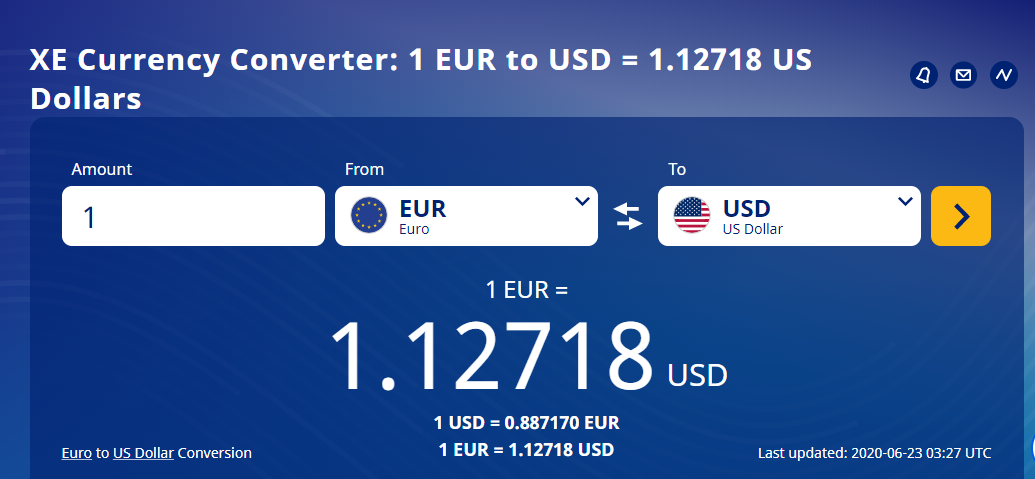
- If the main currency is USD, so the exchange rate for EUR must be 1.12718
- If the main currency is USD, so the exchange rate for FRW must be 0.00105011
Payment gateways
Booking Core allows you to use 2 ways for payment: Offline payment, Online payment
+ Offline payment: is a payment method where customers pay outside the website, either in cash at the counter or by manually transferring money to the admin’s or vendor’s bank account. After the customer completes the payment, the booking status must be updated manually by the admin or the vendor in the Booking Report.
The system does not automatically track or control offline payments; the process depends on the agreement between the admin and the vendor(More about the Offline payment).
+ Online payment: is a direct payment to the admin through paypal/paystripe accounts.. All money goes to the admin's account. After that, the vendor will be required to withdraw once a month or twice depending on the admin's policy.
1. OFFLINE PAYMENT
To activate this option, Navigate to Dashboard > Settings > Payments Settings > Payment Gateway to Enable Offline Payment
- This method allows your user can book service, but they don’t need to pay immediately.
- They can select the service then go to Your Office to pay.
- To enable this method you just need to Enable Submit Form.
You can also change the submit form logo as well.

2. PAYPAL PAYMENT
- This method allows your user can book service, and they can pay immediately via Paypal account.
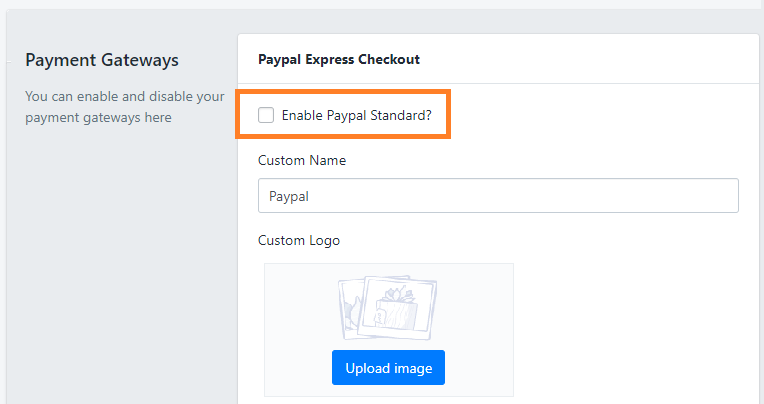
- To enable this method you just need to Enable Paypal
- Continue to enter your PayPal information.
Please read more in this document: https://bookingcore.org/knowleagebase/how-to-obtain-paypal-api-credentials
3. PAYSTRIPE PAYMENT
- This method allows your user can book service, and they can pay immediately via the Stripe account.
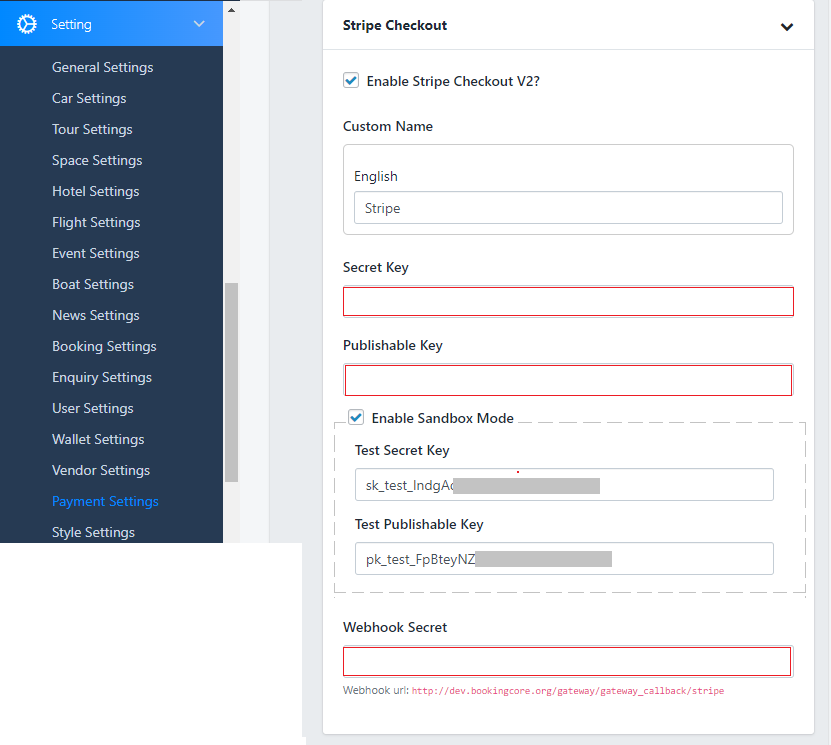
- To enable this method you just need to Enable Stripe
- Continue to enter some information as Your Stripe Secret Key + Publishable Key + Webhook Secret
Please read more here: https://bookingcore.co/knowleagebase/stripe-payment-settings
Was this article helpful?