Form Search All Service
5776 views
•
Updated 59 minutes ago
Dashboard > Templates > Build Template
Form Search All Service
This is the way it shows on the Home page

To build this element, In Template find element Form search all Service, check to the element you want to show in the search form, then input Title + Subtitle + Upload Background
You should use the image with size 1900x600(px) and remember to do optimize before uploading
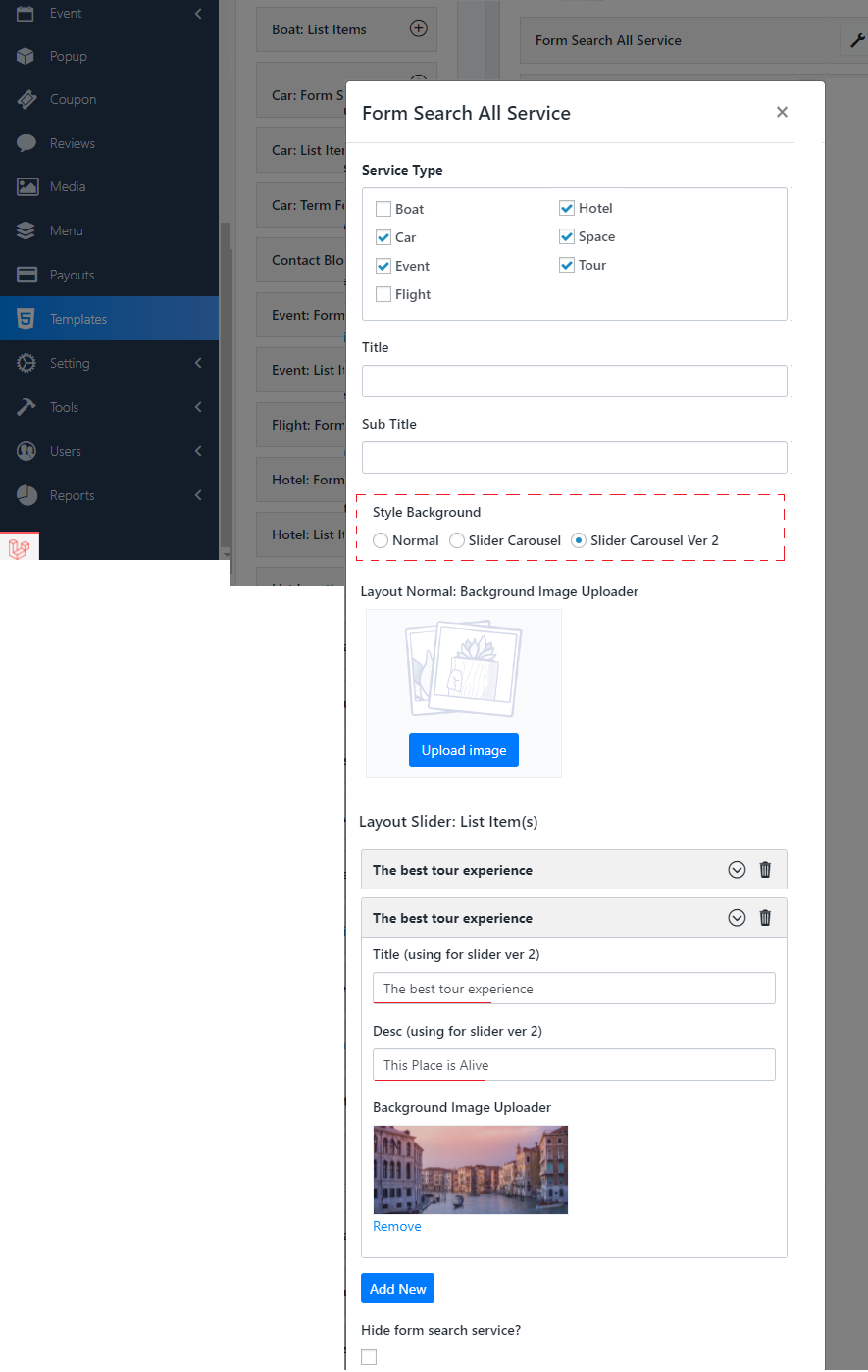
From version 190, the background slider style is added to the Form Search All Service block
To build a slider for banner, please follow these steps below:
- Select the Style background: Slider Carousel
- In the Layout Slider: List Item(s) > Press to Add new Item to add a slider background
- Input the Title / Subtitle + upload image for this slider
- Continue adding a slider for banner and Save change
Was this article helpful?